From our Landing Optimizer editor you can design your pages, add content and create your confirmation pages.
MAIN PARTS
Top Bar
In the top bar there are two tabs:
- Content. Your landing page
- Confirmation Page. This is the page that your visitors will see when they fill out a form. There is a default design but if you prefer you can design your own page.
From this bar you can also: save a landing, preview your page and return to the main page of this landing (link with red background).
Main tool bar
This menu on the left has all the key elements to customize and manage your page. From here you can change the background, predetermined fonts, adjust SEO properties and much more.
- Page elements: sections, images, buttons, text, form, video, area, html.
- General page properties: background and dimensions.
- Edit code: advanced SEO options, JavaScript functionalities y CSS styles.
Editor Toolboxes
The toolbox window will always open when you click over an element to edit it.
There are 2 types of toolboxes:
1- Sections Editor Toolbox:
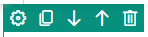
- Edit: You can edit each section by clicking on the edit icon 
- Duplicate: You can duplicate the section by clicking on 
- Delete: you can delete the section 
2- Element Editor Toolbox

- Edit: You can edit each element by clicking on the edit icon
- Duplicate: You can duplicate the element by clicking on
- Delete: You can delete the section by clicking on the icon
Elements properties
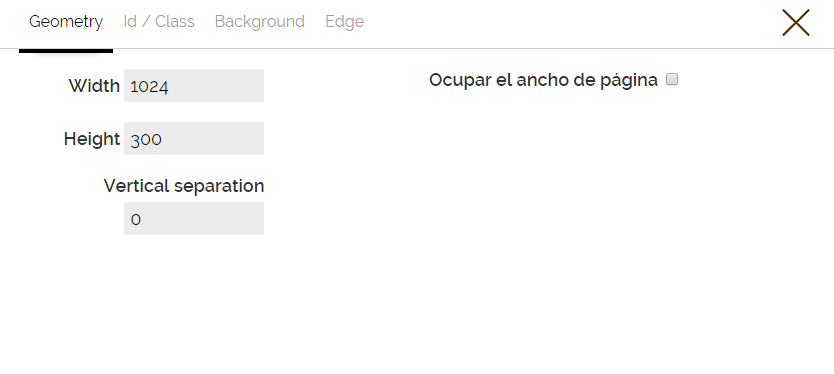
By clicking on the Edit icon you can access the "Properties of each element".
You can change the dimensions of the sections (geometry), the background, the edge, etc. And if you consider yourself and advanced user, you can insert the div tags to the areas of your own code from Id/Class tab (Learn more about Advanced Options).
Vector guide
When moving each element, vector lines will appear which allow you to refine the placement of the element in relation to the other the elements, as well as the block in which it is located.

Comments