Inserting an image
To insert an image on your page you need to do the following:
- Drag the image element into your workspace.

A window will then open for you to upload an image from your computer.
- Once the image has been uploaded, double click on it to edit its properties.
- Click on the Edit icon. 
Image properties
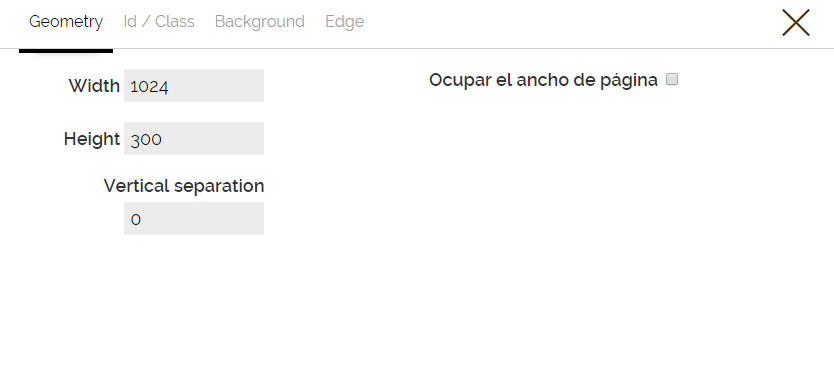
From this window you will be able to: change the dimensions of your landing, change the image, add an ID/class to make advanced changes to the image and also change the edges of the image.
Adding a link to the image
- From inside the element properties click on Upload image.
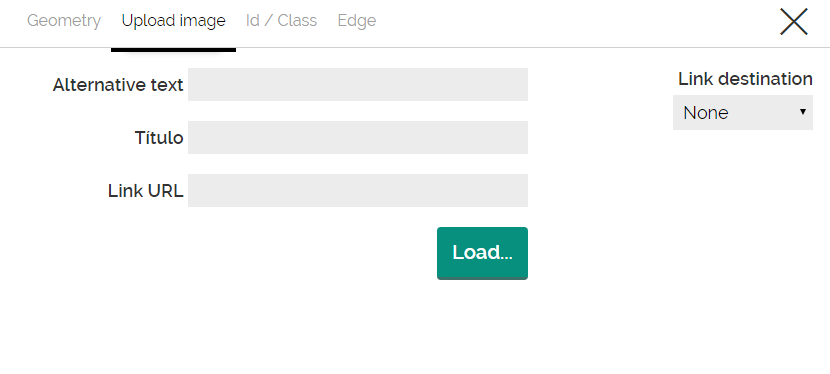
Add the link you want your image to have, in the URL link field.
Replacing an image.
- From inside the element properties click on Upload image.
When you click the Load button, a window will open allowing you to load another image that will replace the existing one.
Adding an edge to the image
- From element properties, click on Edge
Comments