You can use JavaScript and CSS to carry out design work either by yourself or by getting an expert does the work for you using our platform.
Inserting personalized scripts in your page
- Click on the JS icon of the Edit code section in the toolbar.
- When you click the icon a window will appear where can add the JavaScript. You can easily add or delete a code using the icons (+)(-). Save the changes when you´re done.
In this article we show you some examples to add functionalities with JavaScript that help us to control and take more advantage of your form.
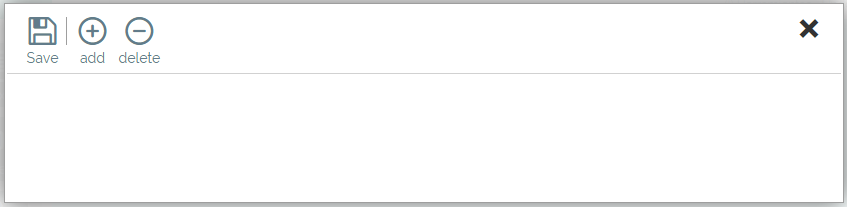
Note: Make sure to put the code between tags <script>.
Furthermore, it is important to keep in mind that this script will only be executed in preview mode or in a published page (not in the editor).
How to add personalized CSS in your page
You can add a full page design, the HTML and stylesheets (CSS) or put ID/Class tags.
A) Add CSS and HTML.
- Click on the icon CSS of the Edit code section in the toolbar.
- When you click the icon a window will appear where you can add the class properties.

CSS 1, CSS 2, etc. (equivalent to each of the style sheets your page has). Keep in mind that it is possible that the person who lands on the landing page does not have the font you use installed and therefore sees the page differently (in this case you can also create an image instead of text to display the text with the desired font).
- Add the HTML. To do so, drag the HTML icon to the section.
It will open the following window. Then insert you HTML code.
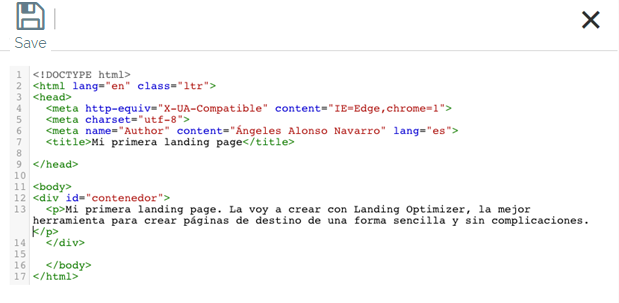
4. Verify the changes by using the preview icon.
B) ID/Class calls
- Click on the CSS icon in the Edit code section in the toolbar.
- Once you click the icon a window will appear where you can add the class properties.
Example: We want to change a text to green. To do so we add the corresponding property and add a name to our class (green).

3. Then go to Element properties and click on the Edit button 
The following window will open. Go to Id/Class tab.
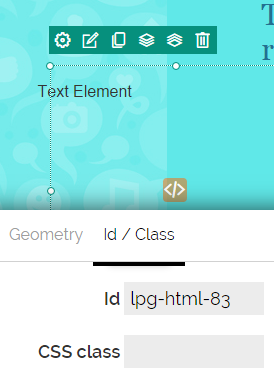
- Add the class tag to CSS Class

- Verify the changes by clicking on preview.
In this article we show you some examples to add functionalities with CSS that help us to vary the style of the landing page elements.
Comments